While Adobe Max 2026 delivered an overwhelming wave of major product announcements, software updates, and technological breakthroughs, several notable enhancements managed to slip past the initial headlines. Among these quieter yet profoundly impactful additions is a complete overhaul of how users can customize the desktop user interface within Adobe Lightroom. The new release introduces powerful workspace personalization tools, giving creators the long-awaited ability to consolidate their most frequently used sliders into a single, dedicated location or reconfigure the application’s layout to mirror the familiar environment of Lightroom Classic.
Designed specifically for desktop users, this new wave of customization addresses years of feedback from photographers and digital artists seeking greater flexibility in how they interact with their editing tools. While these interface adjustments are rolling out to the modern, cloud-connected iteration of Adobe Lightroom on desktop computers, they remain distinct from Lightroom Classic, maintaining the unique architectural identities of both applications while offering users a bridged experience if they prefer traditional layouts.
Choose a Lightroom workspace
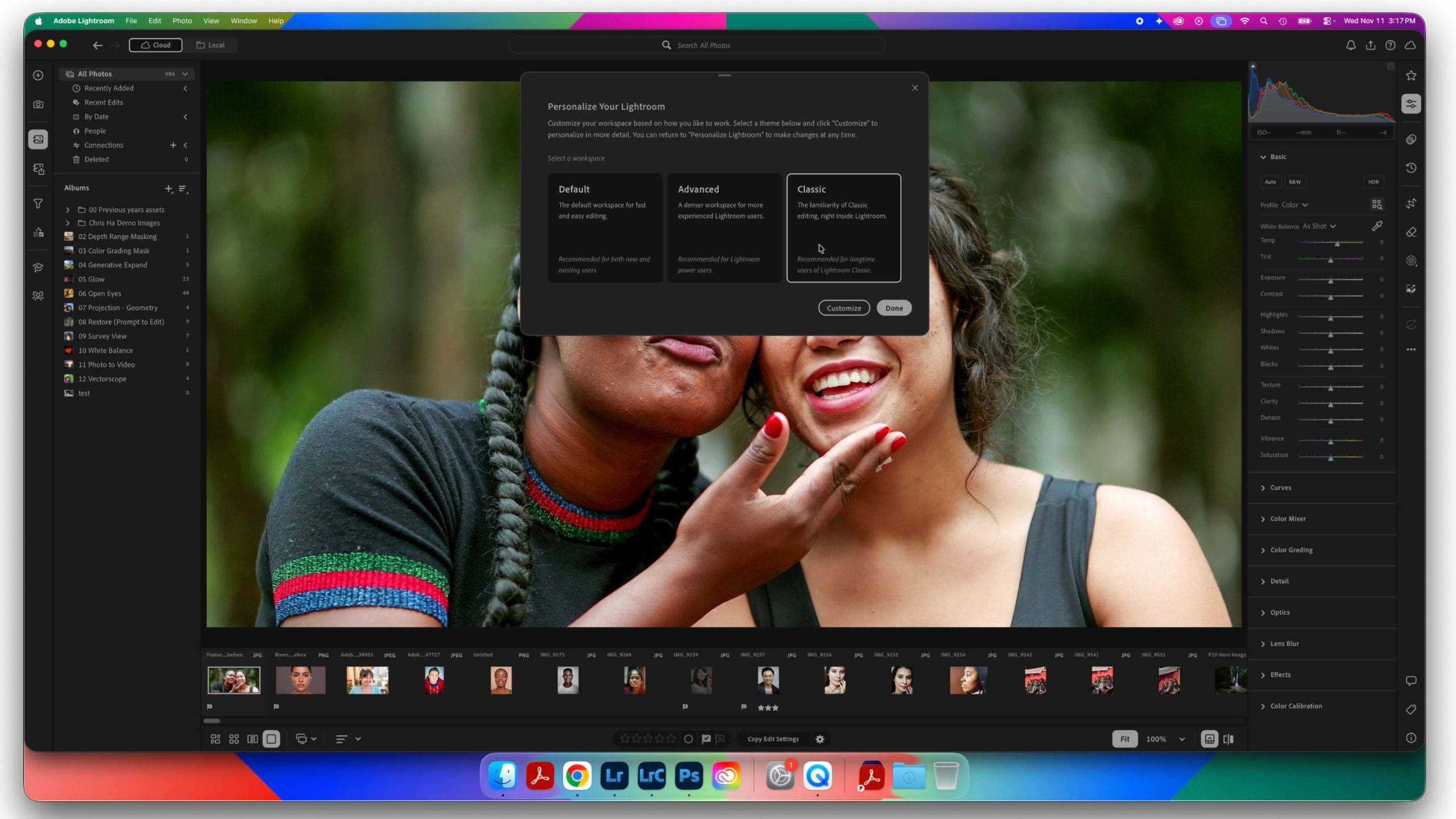
The transformation begins the moment a user updates to the newly designated software cycle. Upon launching the updated application following the update to Lightroom 2027, users are greeted by a prominent pop-up window prompting them to select their preferred workspace environment. For those who wish to dive right back into their projects without immediate changes, the software retains a default mode mirroring the standard Lightroom aesthetic. However, for professionals and enthusiasts looking to tailor their editing bay, the system introduces alternative configurations, including an Advanced mode packed with expanded controls and a Classic mode designed to ease the transition for veterans of Lightroom Classic.
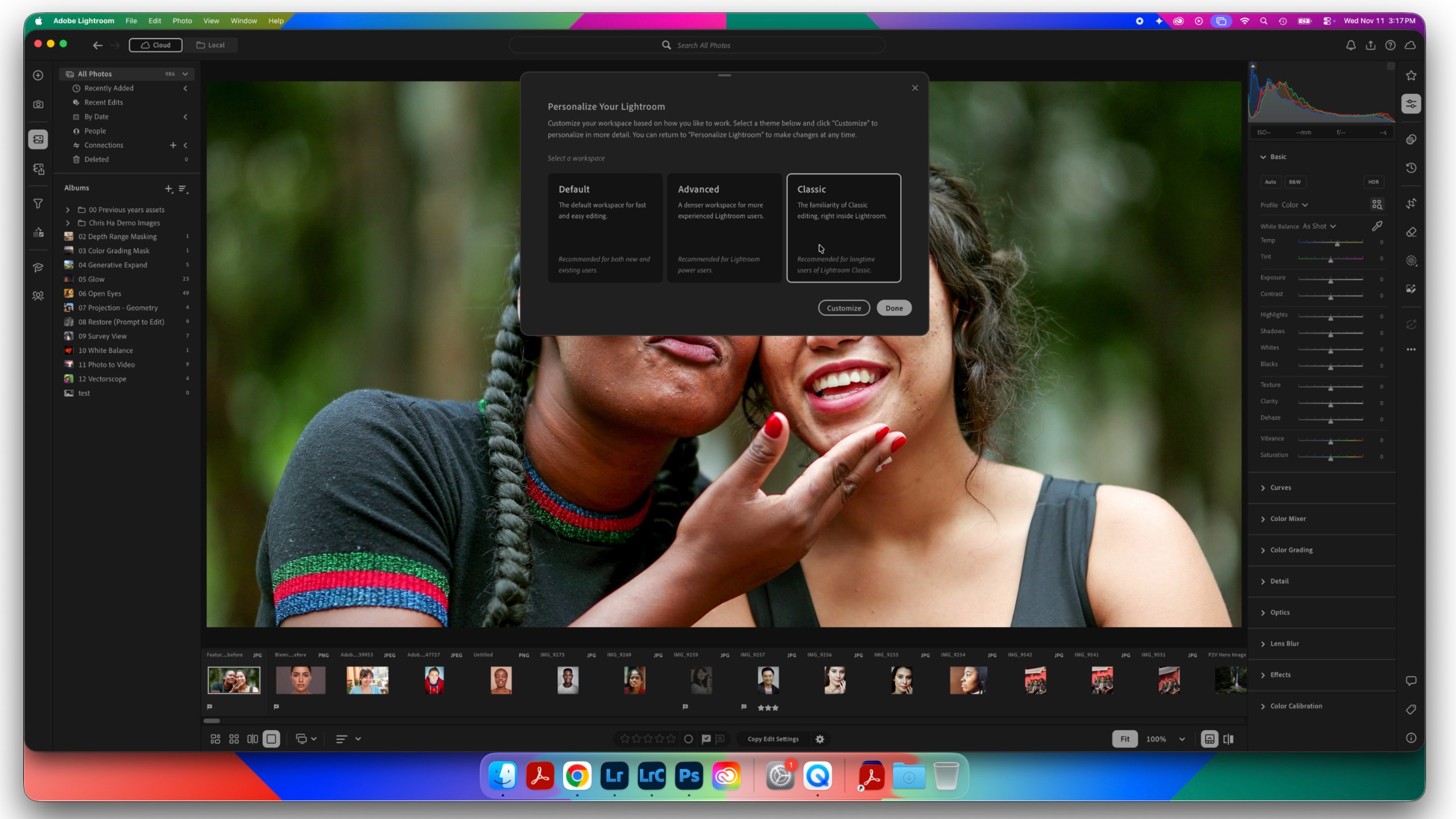
Beyond the initial startup prompt, these personalization options remain accessible at any time. Users can navigate directly to the application menu by selecting Lightroom followed by the Personalize Lightroom command. Within the configuration panel, photographers are granted deep control over their daily visual environment. This includes toggling the lighter user interface theme for those who prefer working in bright studio conditions, as well as remapping keyboard shortcuts. Creators can choose to stick with modern Lightroom shortcuts or switch over to the classic keyboard command layouts they may have memorized over decades of professional editing. Once all preferences have been locked in, the application performs a quick restart to seamlessly transition the workspace into the newly customized configuration.
Build a new home for favorite Lightroom sliders
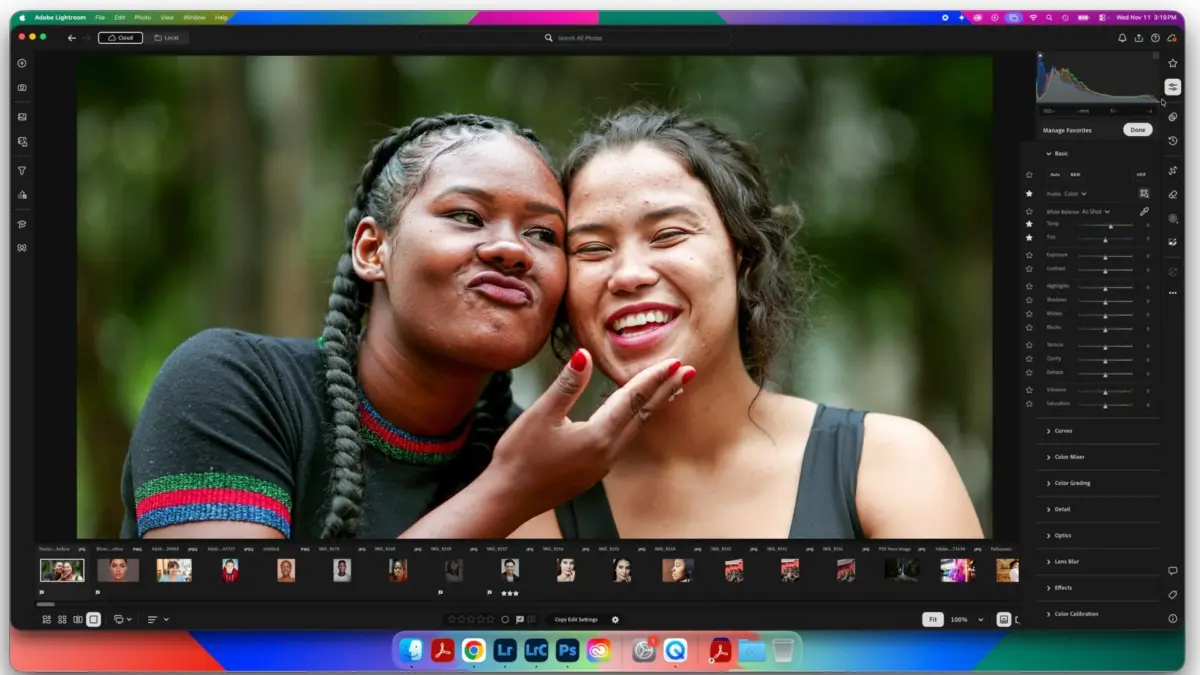
Once inside an editing session, the depth of the new interface customization becomes apparent, particularly through the introduction of a dedicated Favorites panel. Historically, navigating through the extensive sidebar of adjustments required constant scrolling and collapsing of various editing panels to jump between exposure, color grading, detail, and effects sliders. The new workflow dramatically streamlines this process by allowing photographers to curate all their essential, go-to sliders and house them collectively within a single, unified panel on the right-hand side of the screen.
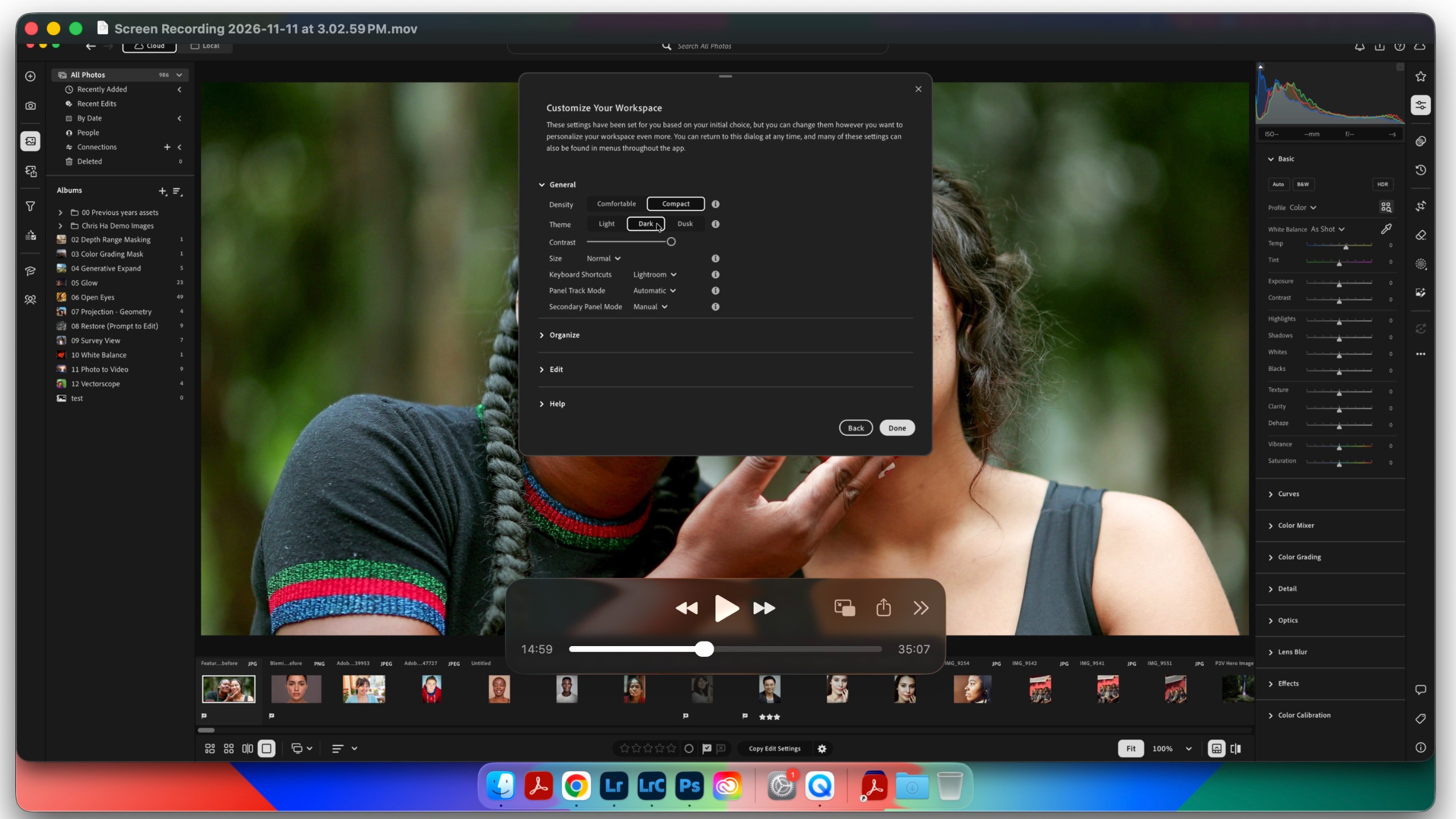
To populate this new space, users simply click the star icon located on the right-hand panel, open the associated overflow menu, and select the manage favorites option. This action activates star icons adjacent to every individual tool and adjustment slider throughout the entire sidebar. By clicking the star next to any given tool, photographers can instantly flag it as a favorite, adding it directly to their personalized control center.
The system goes a step further by supporting full drag-and-drop reordering within the Favorites panel. This allows creators to arrange their selected sliders in the exact chronological or logical order that matches their personal editing habits, whether they prefer starting with basic tonal adjustments before moving into masking and color manipulation, or following a completely custom routine. Once the desired arrangement is achieved, clicking the done button finalizes the setup, placing the most critical tools right at the fingertips without unnecessary hunting through nested menus.
Furthermore, Adobe has built portability into the new feature set. The curated favorites configurations are not locked to a single machine or user profile; instead, they can be easily exported and imported. This capability allows professional studios, educators, and collaborative teams to share standardized editing workspaces across multiple devices or distribute custom tool layouts among fellow creators, ensuring a consistent and efficient workflow regardless of where the editing takes place.